Face-Based Electrical Fixtures with Nested Symbols
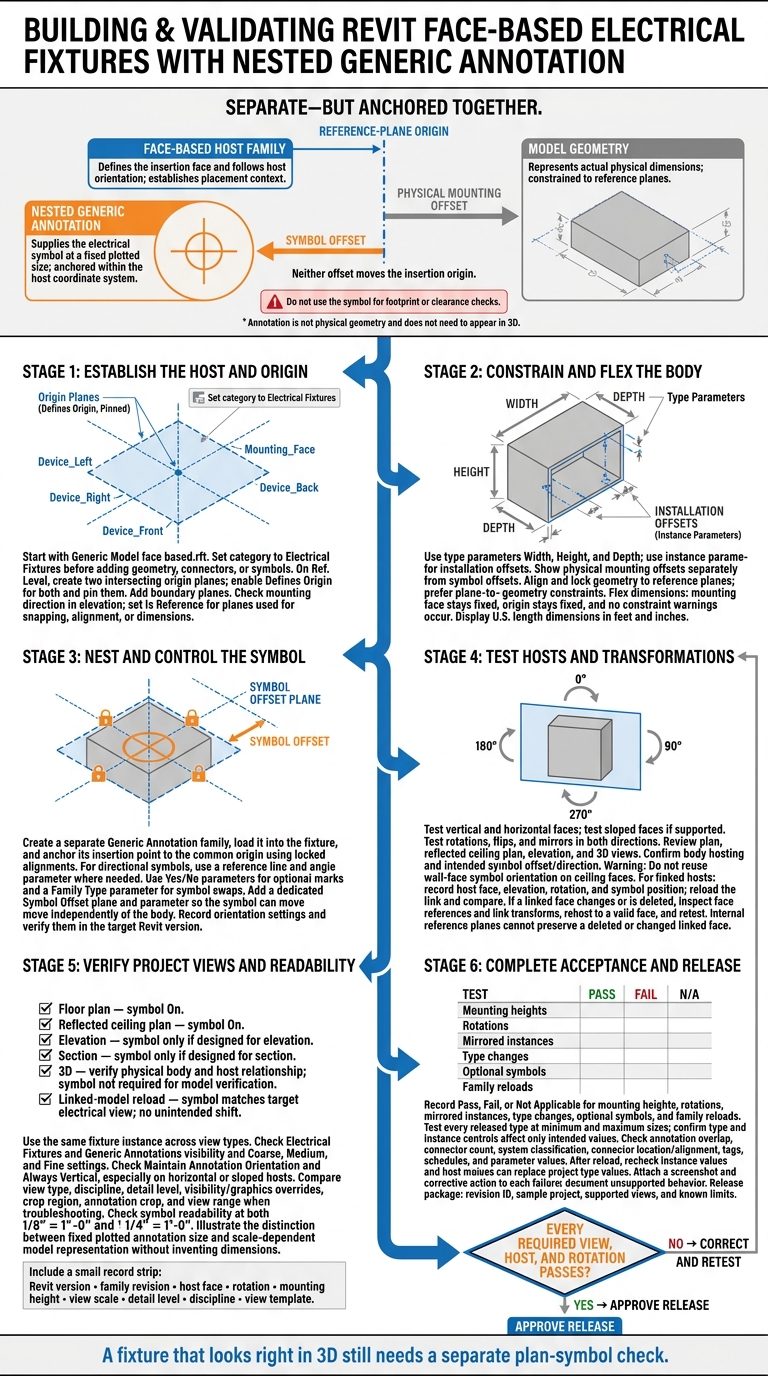
I build face-based electrical fixtures around one rule: keep the host, 3D body, and 2D symbol separate - but anchored together. I start with a face-based template, set the category to Electrical Fixtures, and use reference planes to control the body and nested Generic Annotation.
Before release, I check more than placement:
- Alignment: Keep physical mounting offsets separate from symbol offsets.
- Orientation: Test 0°, 90°, 180°, and 270°, plus flips and mirrors on each supported host.
- Visibility: Check required views and symbol readability at 1/8" = 1'-0" and 1/4" = 1'-0".
- Project behavior: Verify linked-host reloads, connectors, tags, schedules, and parameter values.
My release rule is simple: <u>every required test must pass</u>. A fixture that looks right in 3D still needs a separate check for its plan symbol.
Revit Face-Based Fixtures: Build, Test, Release
Revit - Creating Custom Electrical Symbols in Revit MEP
sbb-itb-f008923
Set Up the Face-Based Fixture Family
Start with Autodesk Revit’s Generic Model face based.rft template to anchor the nested plan symbol. Before adding geometry, connectors, or symbols, open Family Category and Parameters and change the category to Electrical Fixtures. This keeps face-based hosting and establishes the origin the nested symbol will inherit.
Define Reference Planes and Lock Geometry
On Ref. Level, create and name two intersecting origin planes. Enable Defines Origin for both, then pin them. Add Device_Left, Device_Right, Device_Front, Device_Back, and Mounting_Face reference planes. Before modeling, check the mounting direction in elevation.
Set Is Reference for the planes users will snap to, align with, or dimension from. The body and nested annotation will use the same origin across views.
Dimension between the reference planes. Label standard device dimensions with type parameters such as Width, Height, and Depth, and use instance parameters for installation offsets. For U.S. documentation, display length dimensions in feet and inches. Keep physical mounting offsets separate from symbol offsets. Neither should move the insertion origin.
Build solids against these planes, then use Align and its lock control to constrain edges or centerlines to them. Prefer plane-to-geometry constraints over geometry-to-geometry constraints.
Flex the parameters before moving on. Resizing should leave the mounting face in place without triggering constraint warnings. Keeping the origin fixed also gives the plan symbol a consistent anchor.
Separate Hosting, Symbols, and Geometry
Generic Annotation graphics keep a fixed plotted size. Model geometry, by contrast, represents actual dimensions. Do not use the symbol for footprint or clearance checks.
| Component | Placement behavior | Plan representation | Symbol alignment and visibility |
|---|---|---|---|
| Face-based host family | Defines the insertion face and follows host orientation | Sets the fixture’s placement context | Host-family category and visibility settings affect symbol display |
| Nested Generic Annotation | Anchored within the host’s coordinate system | Supplies the electrical symbol at annotation size | Annotation visibility, orientation, and detail-level settings control display |
| Model geometry | Constrained to the family’s reference planes | Shows the physical device footprint or projection | Shared reference planes align the body with the symbol; category, subcategory, detail level, and visibility parameters control geometry display |
Nest the Symbol and Test Placement
Create and Anchor the Generic Annotation
With the fixture origin fixed, nest the annotation and lock its insertion point to the same plane intersection. Create a separate Generic Annotation family for the 2D plan symbol, load it into the face-based fixture family, and place it in a plan or elevation family view. Use Align and lock both alignments so the symbol stays anchored when the family flips or rotates.
For directional symbols, use a reference line and angle parameter where needed. Use Yes/No parameters for optional marks and a Family Type parameter to swap the entire symbol. Record the orientation settings and check them in your target Revit version. Then assign a separate offset plane so the symbol can move independently of the fixture body.
Set Symbol Offsets and Test Host Faces
With the annotation anchored, create a named Symbol Offset plane. Dimension it from the origin plane and label the dimension with a dedicated parameter. Align and lock the annotation to this plane, then test its offset across host faces.
Test vertical and horizontal faces, plus sloped faces if needed. Check 0°, 90°, 180°, and 270°, then mirror in both directions. Review plan, reflected ceiling plan, elevation, and 3D views. The body must stay hosted, and the symbol must keep its intended offset and direction. Do not reuse wall-face symbol orientation on ceiling faces.
Test Placement on Linked Models
After testing local faces, check placement on linked geometry. Place fixtures on linked-model faces and record the host face, elevation, rotation, and symbol position. Reload the link and check placement again, including the nested symbol’s alignment.
If placement changes, inspect the linked geometry, face references, and link transforms. Internal reference planes cannot preserve a deleted or changed linked face. Rehost the fixture to a valid face and repeat the check.
Set Up Electrical Views and Check Results
After host placement tests, load the family into a small test project with representative walls, ceilings, floors, and one linked architectural model. Use it to check nested plan symbols across project views. Keep the model small so visibility problems are easy to isolate.
Record the Revit version, family revision, host face, rotation, mounting height, view scale, detail level, discipline, and view template. Create dedicated floor plan, reflected ceiling plan (RCP), elevation, section, and 3D views.
Set Symbol Visibility and Orientation
In the project view, confirm that Electrical Fixtures and Generic Annotations are visible. In the Family Editor, check the nested symbol’s Coarse, Medium, and Fine visibility settings.
A visible fixture body does not mean the symbol is enabled. If the symbol is missing in a floor plan, its visibility may be disabled for that detail level. Edit the nested symbol’s visibility settings, then reload the host family.
Compare floor plans and reflected ceiling plans using the project’s view templates. If the symbol appears in one view but not another, compare the view type, discipline, detail level, visibility/graphics overrides, crop region, annotation crop, and view range.
Check the nested annotation’s Maintain Annotation Orientation and Always Vertical settings, especially on horizontal or sloped hosts. Test wall hosts facing each direction, and rotate the instance through 90°, 180°, and 270°.
If a symbol disappears, use Reveal Hidden Elements to check for view-specific hiding. Determine whether the instance, category, or family is hidden, or whether the geometry falls outside the view or is disabled at the selected detail level. In 3D views, check only the body and its relationship to the host.
Use the same fixture instance in every view type before recording results.
Record View and Placement Test Results
Record expected and observed results in the table. Set expectations based on the family’s documented purpose. Check annotation legibility at both 1/8" = 1'-0" and 1/4" = 1'-0", reviewing density and readability at each scale.
| View or scenario | Host orientation | Detail level | Model geometry visibility | Expected symbol visibility | Symbol position | Observed result |
|---|---|---|---|---|---|---|
| Floor plan | Vertical wall | Medium | Per plan settings | On | Centered or at the documented offset | Pass/fail + notes |
| Reflected ceiling plan | Ceiling underside | Fine | Per RCP settings | On | Centered or at the documented ceiling offset | Pass/fail + notes |
| Elevation | Vertical wall | Fine | Fixture profile visible | Only if designed for elevation | No unintended displacement | Pass/fail + notes |
| Section | Floor or ceiling face | Fine | Correct cut/projection display | Only if designed for section | Aligned with the intended reference | Pass/fail + notes |
| 3D view | Any supported face | Coarse, Medium, or Fine | Physical body visible as configured | Not required for model verification | No detached model geometry | Pass/fail + notes |
| Linked-model reload | Linked host face | Target view settings | Fixture and background display correctly | Matches the target electrical view | No unintended shift | Pass/fail + notes |
Run Project Acceptance Checks
Use the recorded results to complete project acceptance. Mark Pass, Fail, or Not Applicable for mounting heights, rotations, mirrored instances, type changes, optional symbols, and family reloads. Confirm that symbols don't overlap adjacent annotations.
Check connector count, system classification, location, and alignment. Then place tags and create a schedule to verify parameter values. After reloading, recheck instance values and host relationships.
Attach a screenshot and corrective action to each failure. Document unsupported behavior as unsupported.
Conclusion: Family Release Checklist
Approve release only when every required view, host, and rotation passes the tests above.
- Host stability: Check that every documented host condition passes, including linked-model faces when required.
- Symbol visibility and orientation: Verify that all required views pass and that rotations, mirrors, and flips keep graphics readable.
- Type behavior: Test every released type at its minimum and maximum sizes. Check that type and instance controls change only the intended values.
- Reload testing: Document which reload option your team will use. Overwriting parameter values can replace project type values.
- Release package: Include the revision ID, sample project, supported views, and known limits.
FAQs
How do I keep symbol offsets consistent across fixture types?
In face-based families, use reference planes in the family editor to set symbol placement. Constrain nested symbols to named reference planes, not directly to host geometry. This keeps offsets fixed relative to the family’s internal origin or mounting surface, no matter the host type.
To verify offsets, compare the construction plan with mounting details and specifications. Check that they align with project requirements and installation instructions.
Should I use separate families for wall and ceiling fixtures?
Not necessarily. A single face-based fixture family can support both wall and ceiling mounting when set up for host-based positioning. Face-based families attach to vertical or horizontal surfaces.
Use reference planes and nested symbols to keep tagging and equipment identification consistent. Set the nested plan symbol to remain view-dependent so it displays correctly in electrical plan views, regardless of the host surface’s orientation.
How can I tell whether a symbol issue comes from the family or view?
Check the nested symbol in the family editor. Make sure its reference planes, host placement settings, and alignment are set up for plan views. Also, check whether host constraints or family visibility settings are hiding the symbol’s geometry.
If the issue persists, compare the symbol with the project legend and specifications. Verify that its orientation and appearance match what’s intended across electrical views.