Off-Page Wire Symbols: How Do Sheet Links Work?
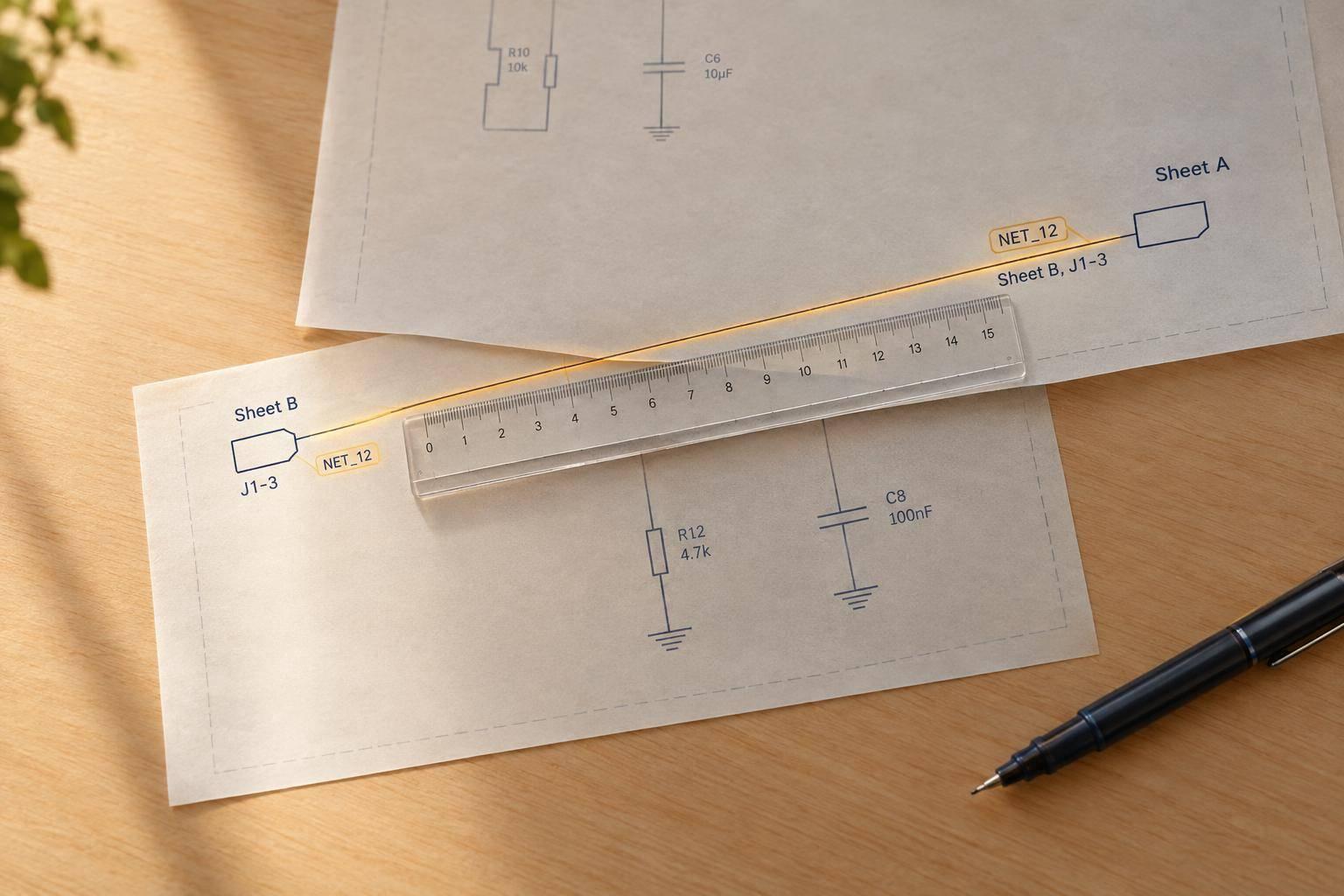
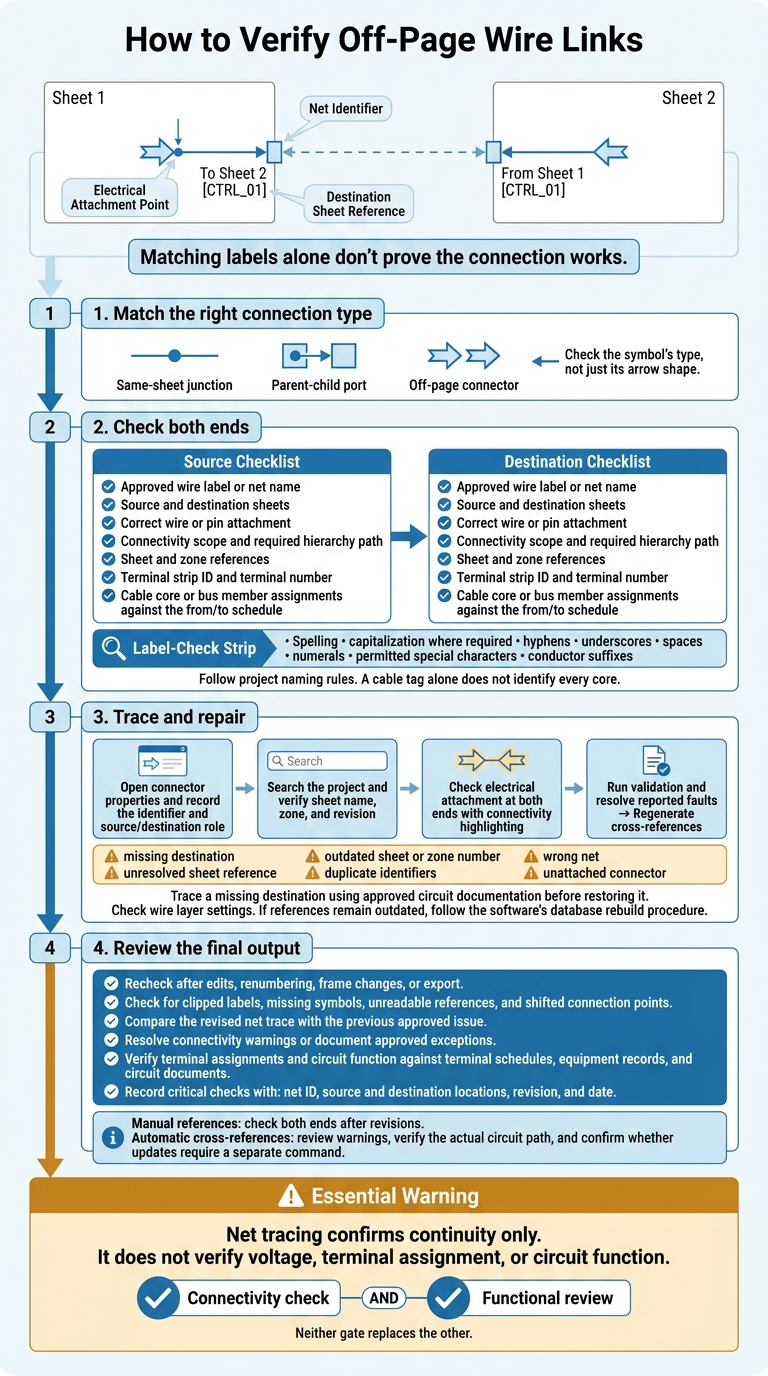
Off-page wire symbols link a circuit across sheets - but matching labels alone don’t prove the connection works. I check 3 things first: electrical attachment, the net identifier, and the destination sheet reference.
Here’s the check I use before trusting a link:
- Match the right connection type: off-page connector, parent-child port, or same-sheet junction.
- Check both ends: confirm names, sheet locations, hierarchy, terminals, and cable cores.
- Trace and repair: use CAD reports to find missing links, duplicate labels, and outdated references.
- Review the final output: recheck manual or automatic references after edits, renumbering, or export - including drawings developed with Elora Grid.
My rule: <u>check the connection and the circuit’s purpose separately</u>. A clean net trace confirms connectivity - not correct voltage, terminal assignment, or circuit function.
How to Verify Off-Page Wire Links
Altium Designer Tutorial 12 | Off-Sheet Connectors, Ports & Net Identifier Scope
sbb-itb-f008923
How Do You Match Wire Labels Across Sheets?
Once the connector is attached correctly, compare the labels at both ends. Use the approved wire label or net name, and check its connectivity scope. Matching text may connect only within that scope. Links between sheets also need the matching connector or port reference specified by the project.
Which Label Details Must Match?
Check spelling, capitalization where required, hyphens, underscores, spaces, numerals, permitted special characters, and conductor suffixes. Follow the project’s naming rules. Don’t assume the software treats different formats as equivalent.
Identify each cable core or bus member separately where required - a cable tag alone doesn’t identify them all. Check core assignments against the from/to schedule. Keep wire numbers separate from terminal numbers, and read each terminal number together with its terminal strip ID.
What Should You Check at Each End?
At both ends, confirm the approved identifier, source and destination sheets, correct wire or pin attachment, required hierarchy path, and accurate sheet and zone references. Check terminal and core assignments against the schedules.
Watch for reused labels that connect to the wrong net. Use equipment, panel, or channel identifiers to tell unrelated circuits apart. Match both the label and the path, then check that the connectivity report shows the intended net - not an open circuit or an unintended short. If the labels match but the link still fails, check the sheet reference and attachment point.
How Do You Find and Fix Broken Sheet Links?
When both ends have the same label but the link still fails, check the reference data and symbol attachment.
Look for a missing destination reference, unresolved sheet reference, or outdated sheet or zone number. These problems often follow renumbering, page imports, deleted connectors, or edits made at only one end.
Copied connectors can duplicate identifiers, while unclear labels can point to the wrong circuit. A graphic arrow - or a connector that doesn’t touch the wire - may look right but still fail electrically.
What Steps Should You Follow to Fix a Link?
Open the connector properties, record its identifier, and check whether it’s the source or destination end. Search the project for that identifier, then verify the current sheet name, zone, and revision. If the destination is missing, trace it using the approved circuit documentation before restoring it.
Zoom in on both ends and use the connectivity highlight tool to check electrical attachment. Check the symbol’s type, not just its arrow shape, to confirm it matches the intended role. Also check wire layer settings, which can affect numbering and sync.
If the link still won’t resolve, run the software’s validation tools before editing the drawing by hand. Check connectivity and unresolved references, then regenerate cross-references to update the verified sheet data. If the references remain out of date, follow the software’s database rebuild procedure.
How Do Manual and Automatic References Compare?
How you create references affects how easily you can fix broken links and correct outdated sheet data. Manual references can work well for small drawing sets with few changes. Automatic references reduce repeat entry, but their accuracy depends on correct project data and supported update behavior. Check whether updates happen immediately or need a separate command.
| Review point | Manual references | Automatic cross-references |
|---|---|---|
| Advantages | Simple in small drawing sets; no project database required | Pulls locations from project data and reduces repeat entry |
| Risks | Page numbers can become outdated after renumbering | Depends on clean project data and correct symbol settings |
| Review requirements | Check both ends after revisions | Review warnings and verify the actual circuit path after every change |
How Does Drawing Software Track Sheet Links?
After manual label matching, software checks confirm that project data still points to the correct linked ends. Drawing software stores each off-page connection as a cross-reference that links the symbol ID, sheet, and grid location. This lets users jump to the paired end.
Which Software Checks Help Verify Connections?
Software checks help flag mismatched ends, outdated references, and duplicate labels before they reach the final drawing set. These checks may include automatic reference generation, net tracing, duplicate-label warnings, unmatched-end reports, and unresolved-connection reports.
Net tracing confirms continuity only. It does not verify voltage, terminal assignment, or circuit function. For unresolved links, look for reports that identify the source sheet, source label, expected destination, destination sheet if known, and the specific reason for failure.
Matching rules depend on the project structure. In flat projects, software compares labels across the sheet set. In hierarchical projects, matching may also depend on scope rules, such as parent equipment or subsystem.
Page and column references come from sheet numbering, the frame grid, and connector placement. After a frame change, recheck stored link locations.
Where Does Elora Grid Fit in the Drawing Workflow?
Once drawings are generated or revised, check the final sheet links in the CAD environment.
Elora Grid helps engineers generate electrical drawings from uploaded tender drawings and related project documents, including general arrangements, single-line diagrams, and schematics. Use it for drawing development, then verify sheet links in the electrical CAD system after export.
What Makes a Sheet Link Reliable?
After matching labels and running software checks, confirm that the cross-sheet connection still holds in the released drawing set. A reliable sheet link needs correct electrical attachment and exact traceability. The wire must land on the connector’s electrical contact point, and both ends must match the approved net name, sheet reference, and hierarchy context. Resolve connectivity warnings or document approved exceptions. A clean check confirms attachment; it does not prove functional correctness.
Next, review the link’s function against the circuit documents. Before release, check it against the terminal schedule and equipment records. These steps are standard in guides for bid & tender teams to ensure technical accuracy.
After that review, check the same link in the final drawing set following any revision, renumbering, or export. Look for clipped labels, missing symbols, unreadable references, and shifted connection points. Compare the revised net trace with the previous approved issue. To keep the release review traceable, record critical link checks with the net ID, source and destination locations, revision, and date.
FAQs
How can I prevent copied connectors from linking unrelated circuits?
Give each off-page connector its own stable identifier. Don’t rely on placement or repeated labels to tell connectors apart. Immediately after copying a connector, update its properties to point to the intended circuit destination.
To verify links, trace equipment tags and circuit references through schedules and terminal plans. Symbols and labels alone aren’t enough. Check cross-sheet connections against your equipment matrix regularly to keep identifiers consistent and avoid accidental links to other circuits.
When should I use a hierarchical port instead of an off-page connector?
Use an off-page connector when a circuit or path continues on another drawing sheet. It points to the matching location on that sheet.
Use a hierarchical port to define a formal interface between design levels or modular blocks, typically in systems with nested circuit segments. Check your project legend and drawing standards to choose the correct symbol.
How can I verify sheet links in an exported PDF?
Don’t rely on appearance or symbol shapes alone. Trace the equipment tag across the drawing set using a reference matrix that lists the exact sheet and detail numbers for each view. Check those references against the drawing index, schedules, and revision history.
If a reference is broken or unclear, verify connection points by matching terminal or wire identifiers to terminal schedules and cable documentation. Don’t use proximity or graphic labels as proof of a connection.