
eTransmit Path Settings for Shared CAD References
Start with an organized folder structure for shared and nested CAD references, then test the package outside its source folders. A ZIP file is not enough: every required file must travel with the drawings and resolve after extraction.
eTransmit offers 3 path options:
- Organized folder structure: A starting point for shared and nested references.
- One flat folder: Use only after resolving duplicate filenames.
- Files and folders as is: Use only when the recipient has matching paths.
Before delivery, check dependencies, DWG compatibility, and the transmittal report. Then extract, reopen, relocate, and plot the drawings without access to the source files. Keep the tested package, report, and checked PDFs together - and rebuild and retest after revisions.
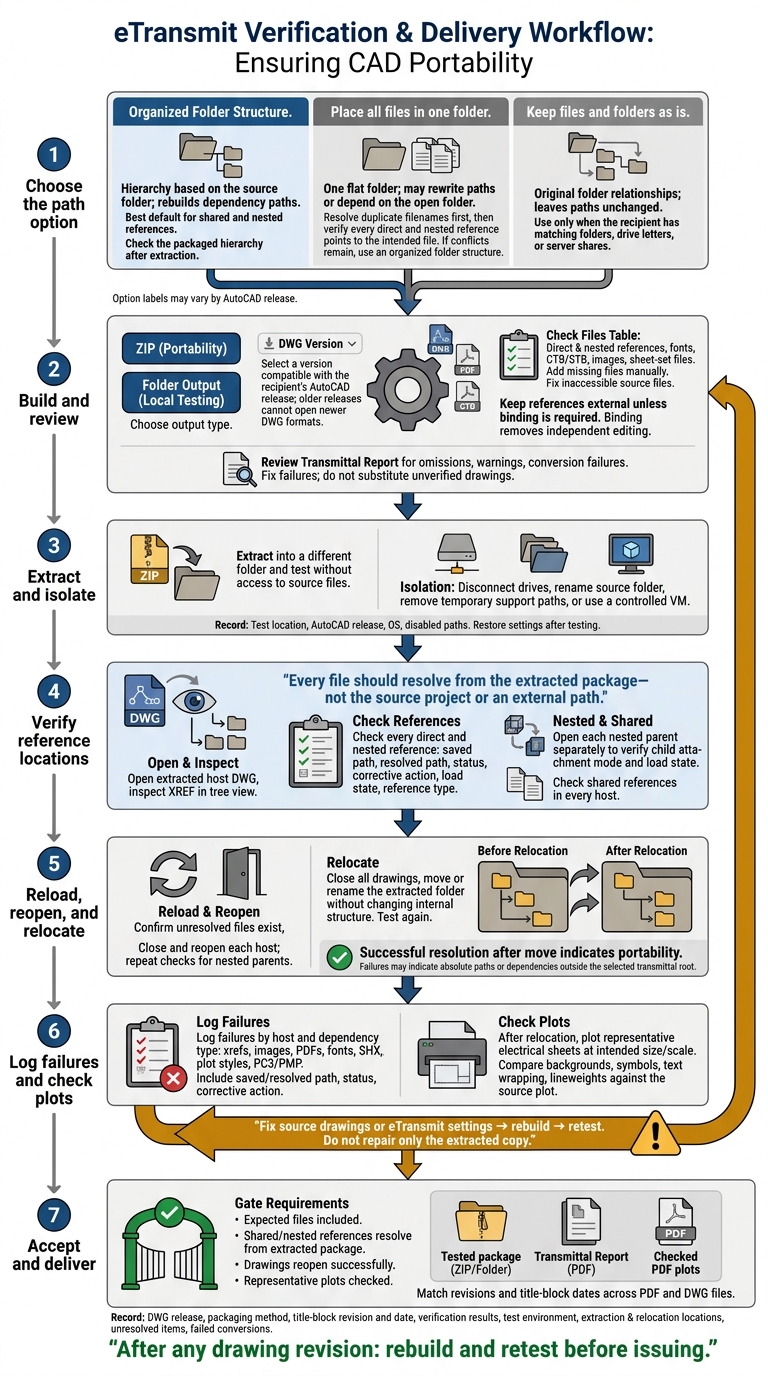
eTransmit Path Settings and Package Testing Workflow
AutoCAD eTransmit: The Smart Way to Share and Archive Design Projects
sbb-itb-f008923
1. Choose an eTransmit Path Option
In Create Transmittal, open Transmittal Setups, select a setup, and click Modify to review Path Options. Labels may vary by AutoCAD release, so check yours against the options below. Your choice controls how shared and nested references resolve after extraction.
| Path option | Packaged folder layout | Effect on reference paths | Recommended use |
|---|---|---|---|
| Organized Folder Structure | Hierarchy based on the source folder | Rebuilds dependency paths | Best default for shared and nested references |
| Place all files in one folder | One flat folder | May rewrite paths or depend on the open folder | Use only when no files share a filename |
| Keep files and folders as is | Original folder relationships | Leaves paths unchanged; requires matching paths | Use only when folder locations match |
Keep an Organized Folder Structure
Start with this option for shared and nested references. eTransmit rebuilds dependency paths around the source folder. Check the packaged hierarchy after extraction to confirm the folder layout.
Check Path Changes and Filename Conflicts Before Flattening
Resolve duplicate filenames before placing everything in one folder. Then check that every direct and nested reference points to the intended file. If flattening causes conflicts, keep an organized folder structure instead.
Keep Paths Unchanged Only When Locations Match
Use this option only when the recipient can access the same folders, drive letters, or server shares. Next, build the package and review the output settings before extraction.
2. Build and Review the Package
Choose the Output Type, DWG Format, and Files
Apply your chosen path strategy so packaged references still work after extraction. Choose ZIP for portability or folder output for immediate local testing. Check the recipient’s AutoCAD release, then save to a compatible DWG version. Older releases cannot open newer DWG formats.
Check that the Files Table includes every direct and nested reference, along with required supporting documents, fonts, CTB/STB plot styles, images, and sheet-set files. Add any missing files manually. Fonts help prevent text substitution, while plot styles preserve the intended lineweights.
Fix missing or inaccessible source files before packaging.
Review Binding and Conversion Settings
Keep references external unless the deliverable requires binding. Binding turns xrefs into blocks. This preserves their display but removes the ability to edit them independently.
Before finalizing, check the converted drawing’s reference paths and remaining dependencies. Review the transmittal report for omissions, warnings, and conversion failures. Fix failures rather than substituting an older, unverified drawing.
Once the report is clean, extract the package into a different folder and test whether its references resolve.
3. Extract and Test in a Different Folder
Test the transmittal copy in isolation to confirm that the selected path option resolves files from the package. Disconnect mapped drives, rename the source folder, remove temporary support paths, or use a controlled virtual machine. Record the test location, AutoCAD release, operating system, and disabled paths. Restore the settings after testing.
Verify Direct and Nested Reference Locations
Open each extracted host DWG and inspect XREF in tree view. Check every direct and nested reference, recording its saved path, resolved path, status, corrective action, load state, and reference type. Every file should resolve from the extracted package, not the source project or an external path.
For shared references, check the resolved location in every host that uses them. These checks show whether the organized, flat, or unchanged path setting still works after extraction. Open each nested-reference parent separately to verify the child attachment mode and load state before flagging missing geometry.
Reload, Reopen, and Relocate the Package
Confirm that unresolved reference files exist, then reload them. Close and reopen each host, and repeat the check for nested parents. Next, close all drawings, move or rename the extracted folder without changing its internal structure, and test again.
Save only if the test requires updated paths. Otherwise, preserve the original package for comparison. If references still resolve from the package after the move, the package is portable. Failures may point to absolute paths or dependencies outside the selected transmittal root.
Log Failures and Check Plots
Log each failure by host drawing and dependency type: xrefs, images, PDFs, fonts, SHX files, plot styles, and PC3/PMP files. Include the saved path, resolved path, status, and corrective action.
After relocation, plot representative electrical sheets at the intended paper size and scale. Compare backgrounds, symbols, text wrapping, and lineweights against the source plot. Fix the source drawings or eTransmit settings, then rebuild and retest - don't repair only the extracted copy.
Conclusion: Deliver the Tested Package
After extraction and relocation tests, accept the package only when all expected files are included, the chosen path setting resolves shared and nested references in the extracted folder, representative plots have been checked, and drawings reopen successfully.
Record Settings and Test Results
Save the transmittal report with the DWG release, packaging method, title-block revision and date, verification results, test environment, extraction and relocation locations, unresolved items, and failed conversions.
Keep Tested Files for Electrical Drawing Workflows
Keep the tested package, transmittal report, and checked PDF plots together as the delivery set. Make sure revisions and title-block dates match across the PDF and DWG files. After any drawing revision, rebuild and retest the package before issuing the next delivery set.
FAQs
Why do my xrefs load locally but fail for recipients?
Xrefs break for recipients when a drawing points to fixed file locations on your computer that don’t exist on theirs, or when referenced files are missing from the delivery.
Use AutoCAD’s eTransmit to package the drawing with all its references. Choose path settings that allow those references to load after the recipient extracts the package into a different folder.
How do attachment and overlay settings affect nested xrefs?
Attachment and overlay settings control whether nested references appear in the host drawing. If Drawing A is attached to Drawing B, and Drawing B is attached to Drawing C, Drawing A also appears in Drawing C.
But if Drawing B is overlaid onto Drawing C instead, its nested Drawing A stays hidden.
How can I detect shared xrefs pointing to the wrong file?
After extracting the package into a different folder, check the xref status and paths. Verify each reference’s source revision and project ID against the approved baseline. Don’t rely on filenames alone.
If a reference is broken or incorrect, stop synchronization. Confirm the approved path, filename, and permissions before relinking. Open the exported files - not the authoring models - and check for missing references or incorrect geometry. Document why any replacement link was used.